> ## Documentation Index
> Fetch the complete documentation index at: https://docs.botmailroom.com/llms.txt
> Use this file to discover all available pages before exploring further.
# Custom Domains
> Use your own domain in your inbox email address
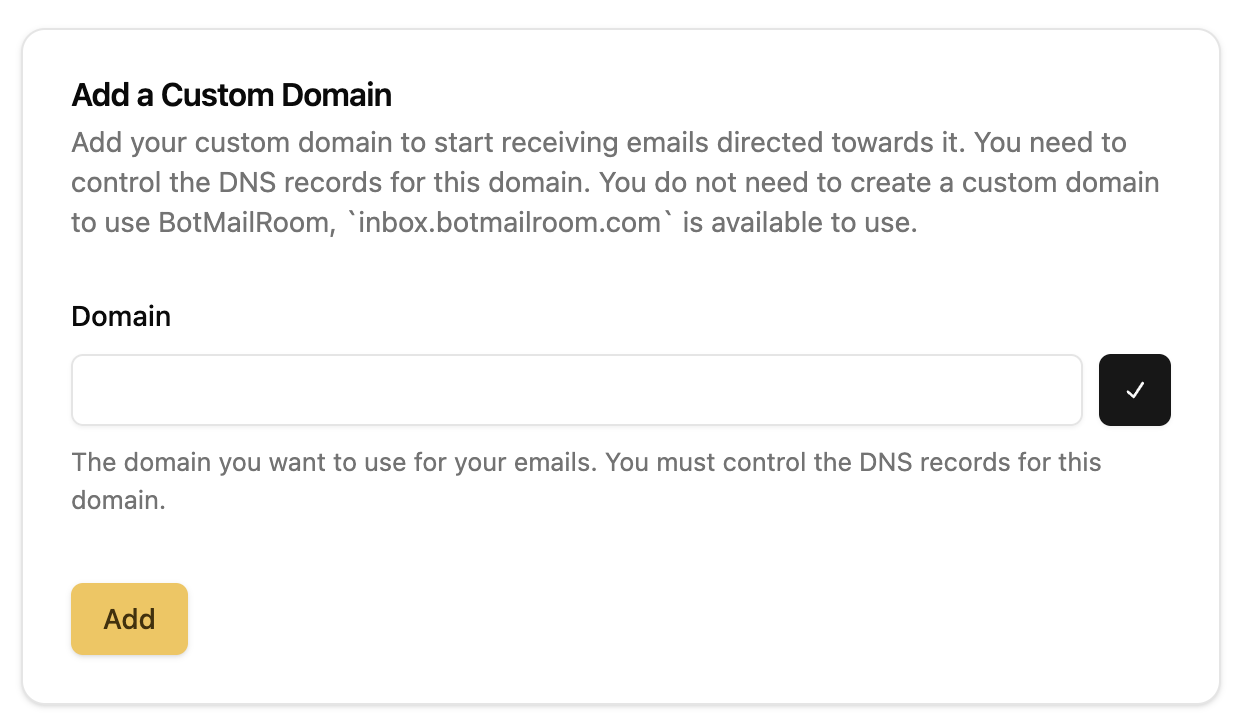
While you don't need to create a custom domain to use BotMailRoom (the `inbox.botmailroom.com` domain is automatically included), you can create a custom domain to use your own domain in your inbox email address.
You must control the DNS for the domain you're registering. BotMailRoom will
not register the domain for you.
## Creating a Custom Domain
You can create a custom domain by calling the [create domain endpoint](/documentation/api-reference/domain/create-domain) or going to the [domains page](https://app.botmailroom.com/domain).
 ## Verifying a Custom Domain
Once you've created a custom domain, you'll need to verify that you control the domain. This is done by adding the DNS records returned in the [create domain response](/documentation/api-reference/domain/create-domain#response) or from the UI to your DNS provider.
## Verifying a Custom Domain
Once you've created a custom domain, you'll need to verify that you control the domain. This is done by adding the DNS records returned in the [create domain response](/documentation/api-reference/domain/create-domain#response) or from the UI to your DNS provider.
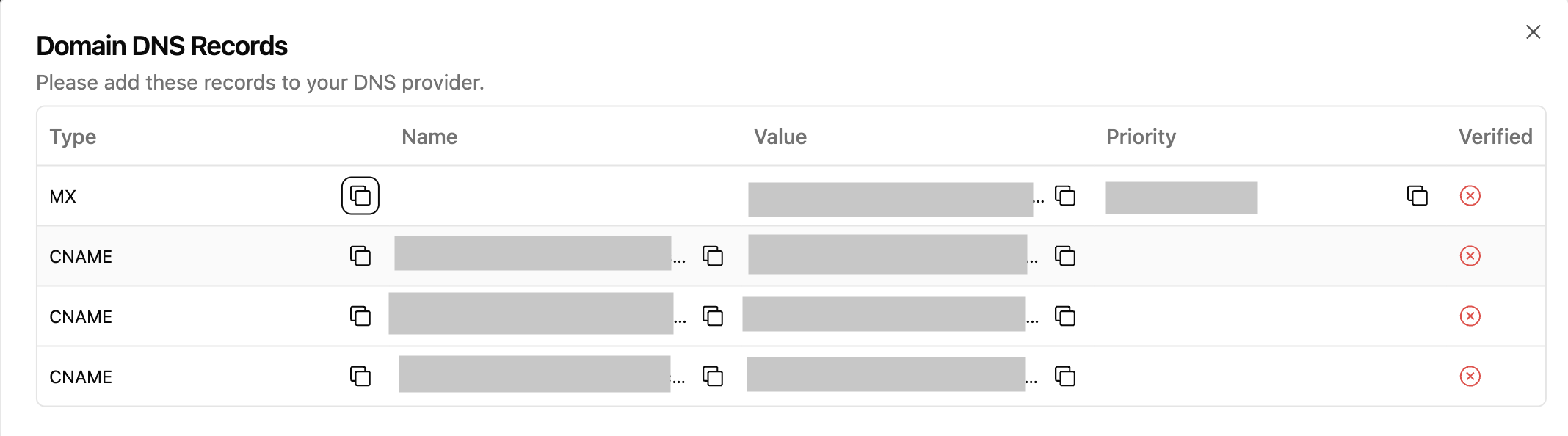 Once the records have been added, you can click the `Verify` button in the UI to verify the domain.
Depending on your DNS provider, it may take up to 72 hours for the domain to
be verified. You will not be able to receive emails at inboxes using the
domain until it has been verified.
Once the records have been added, you can click the `Verify` button in the UI to verify the domain.
Depending on your DNS provider, it may take up to 72 hours for the domain to
be verified. You will not be able to receive emails at inboxes using the
domain until it has been verified.
